Set up a Facebook Page your group won't lose
A step-by-step guide for Landcare committees · yours to keep and print
First, the three things that get muddled
Facebook has three different things that sound similar. Getting them straight now saves a lot of confusion later.
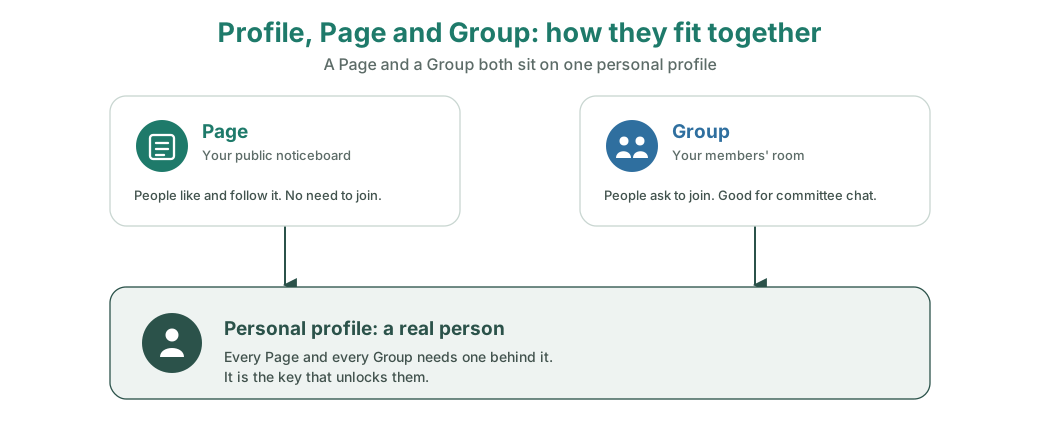
Profile, Page, Group — what's the difference?
Read these three before you start. They are not the same thing.
- A personal profile
-
This is a single human being on Facebook. It has friends, it has a name, it is meant to be one real person. You almost certainly already have one. Every Page and every Group has to sit behind a personal profile, because Facebook needs a human to be "in charge".
Think of it as the key that unlocks everything else.
- A Page
-
This is the public face of your group. It is what people find when they search for your Landcare group. It can be "liked" and "followed", it can post photos and events, and it does not need people to "join" it. This is the thing you are setting up in this guide.
Think of it as your group's noticeboard and shopfront.
- A Group
-
This is a members' space where people join and have conversations with each other. Good for chatting among volunteers, organising working bees, and asking questions. People have to request to join. It is a different tool from a Page, and this guide does not cover it.
Think of it as your group's private meeting room. Many Landcare groups have a Page for the public and, later, a Group for members. Start with the Page.
The fix: a "caretaker" profile owned by the group
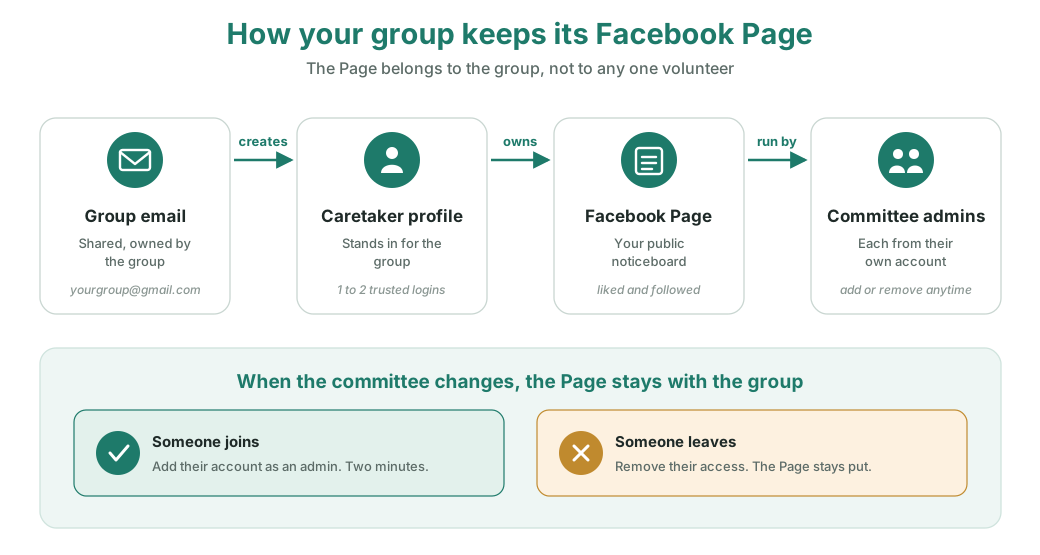
Instead of building your Page behind one person's private Facebook account, you make one extra profile that belongs to the group. It is built on a shared group email address (not a personal one), and only one or two trusted people hold its login. That caretaker profile owns the Page. Everyone else helps run the Page from their own normal Facebook account.
Here is the whole structure at a glance.
Stage A — Set up the group email and caretaker profile
-
Step 1
Create a group email (skip if you already have one)
Go to
gmail.comand click Create account, then For my personal use. Use your group's name, for exampleyourgroupname.landcare@gmail.com. Write the email and its password on your committee's password sheet. -
Step 2
Start a new Facebook profile for the group
Open a private/incognito browser window so you do not get mixed up with your own Facebook. (In Chrome: the three dots, top right, then New Incognito window.) Go to
facebook.comand click Create new account. -
Step 3
Fill in the caretaker profile details
For the name, use something that reads like a real person looking after the group, for example first name your group's short name and surname Landcare. Use the group email from Step 1. Set a strong password and write it down. Pick a date of birth (a real adult date is fine). Finish creating the account.
-
Step 4
Confirm the email and add a phone number
Open the group Gmail in another tab, find the email from Facebook, and click the confirm button. Back in Facebook, go to Settings & privacy, then Settings, then Security and login, and add the group's mobile number. This protects the account if it ever gets locked.
Stage B — Create the Page
-
Step 5
Open the "create a Page" screen
Still logged in as the caretaker profile, go to
facebook.com/pages/createin the address bar. (Or click the Menu button, the nine dots or "Menu", find Pages, then Create new Page.) -
Step 6
Name the Page and pick a category
In Page name, type your group's full public name, e.g. Smithtown Landcare Group. In Category, start typing "environment" and choose Environmental Conservation Organization (or the closest fit). Add your short description in the Bio box.
-
Step 7
Create it, then add your photos
Click Create Page. On the next screen, add your profile picture (your logo) and a cover photo (a wide landscape shot). Click Save.
-
Step 8
Add your contact details and a first post
Use Edit Page info to add your group's email, website, and area. Then write a short first post saying hello, so the Page does not look empty when people arrive.
Stage C — Add your committee as admins
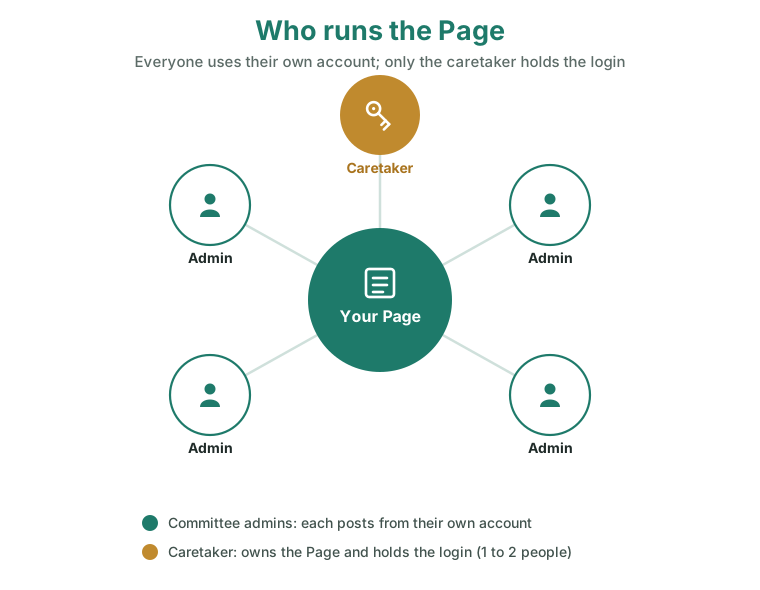
This is the part that keeps the group in control. Each committee member is added from their own Facebook account, so they never share the caretaker login.
-
Step 9
Open the Page's access settings
On the Page, click Settings (you may need Manage first), then look for Page access (sometimes under "New Pages experience").
-
Step 10
Add a committee member
Under People with Facebook access, click Add New. Type the committee member's name or email, choose them, and confirm. For one or two most-trusted people, turn on the toggle that lets them "manage Page access" (full admin). For everyone else, leave it off (they can post and reply, but not add or remove people).
-
Step 11
They accept, and they're in
The person gets a notification on their own Facebook and clicks accept. From then on they can switch into the Page and post as the group, all from their normal account. Repeat Step 10 for each committee member.
When the committee changes
A new committee member joins
They want to help post and reply on the Page.
A committee member steps down
They should no longer be able to post as the group.
The person holding the caretaker login leaves
The group needs the master login passed on.
Always keep two full admins
If the only full admin is unreachable, no one can add or remove people.
Common mistakes
Building the Page behind your own profile
When you leave the committee, the Page leaves with you. This is the exact problem the guide prevents.
Sharing the caretaker password around
More logins means more chance the account gets locked, and harder to control who has access.
Using a personal email for the caretaker
If that person leaves, the group cannot reset the password and can be locked out.
Forgetting the recovery phone and email
If Facebook asks to verify the account, you cannot get back in.
What these words mean
Plain English for the Facebook terms used above.
- Caretaker profile
-
The personal Facebook profile you make to stand in for the group. It owns the Page so no single committee member does.
- Admin (administrator)
-
Someone allowed to run the Page: post, reply to messages, and so on. There are two levels, full access (can also add and remove people) and partial access (can post but not change who has access).
- Facebook access vs task access
-
In the newer Page settings, "Facebook access" means full or near-full control of the Page; "task access" is for narrower jobs like just replying to messages. Most committee members want Facebook access.
- Incognito / private window
-
A fresh browser window that ignores who is already logged in. Handy so the caretaker profile does not get tangled up with your own Facebook account.
- Recovery email and phone
-
The backup contact details Facebook uses to confirm it is really you if the account gets locked. For the caretaker profile these must belong to the group, not a person.